Creating a budget can feel overwhelming, especially for those new to financial planning. Imagine a teacher, Sarah, sitting at her kitchen table with a pile of receipts and bills scattered around her. She knows she needs to make sense of her finances but isn’t sure where to begin. This is where learning how to make an Excel budget worksheet comes in handy. Using Excel to create a budget not only simplifies the process but also allows for easy tracking and adjustments.
Understanding the Basics of Budgeting
Before diving into how to make an Excel budget worksheet, it’s crucial to understand what budgeting entails. A budget is essentially a plan that outlines expected income and expenses over a specific period. This process helps individuals or families manage their finances, save for future goals, and avoid overspending.
For teachers and homeschool parents, budgeting can also serve as a teaching tool for students, introducing them to essential financial literacy skills. Understanding income sources, fixed and variable expenses, and the importance of savings can set children up for financial success in adulthood.
Preparing Your Data for the Budget Worksheet
To effectively create a budget worksheet in Excel, gather all relevant financial information. This includes:
- Income: Salaries, side jobs, and any other sources of income.
- Fixed Expenses: Rent or mortgage, utilities, insurance, and loan payments.
- Variable Expenses: Groceries, entertainment, clothing, and discretionary spending.
Once you have this data, organize it in a way that makes sense. For instance, it may be helpful to categorize expenses to see where most of your money goes.
Steps to Create an Excel Budget Worksheet
With your data ready, follow these steps to create a budget worksheet in Excel:
- Open Excel: Start a new spreadsheet.
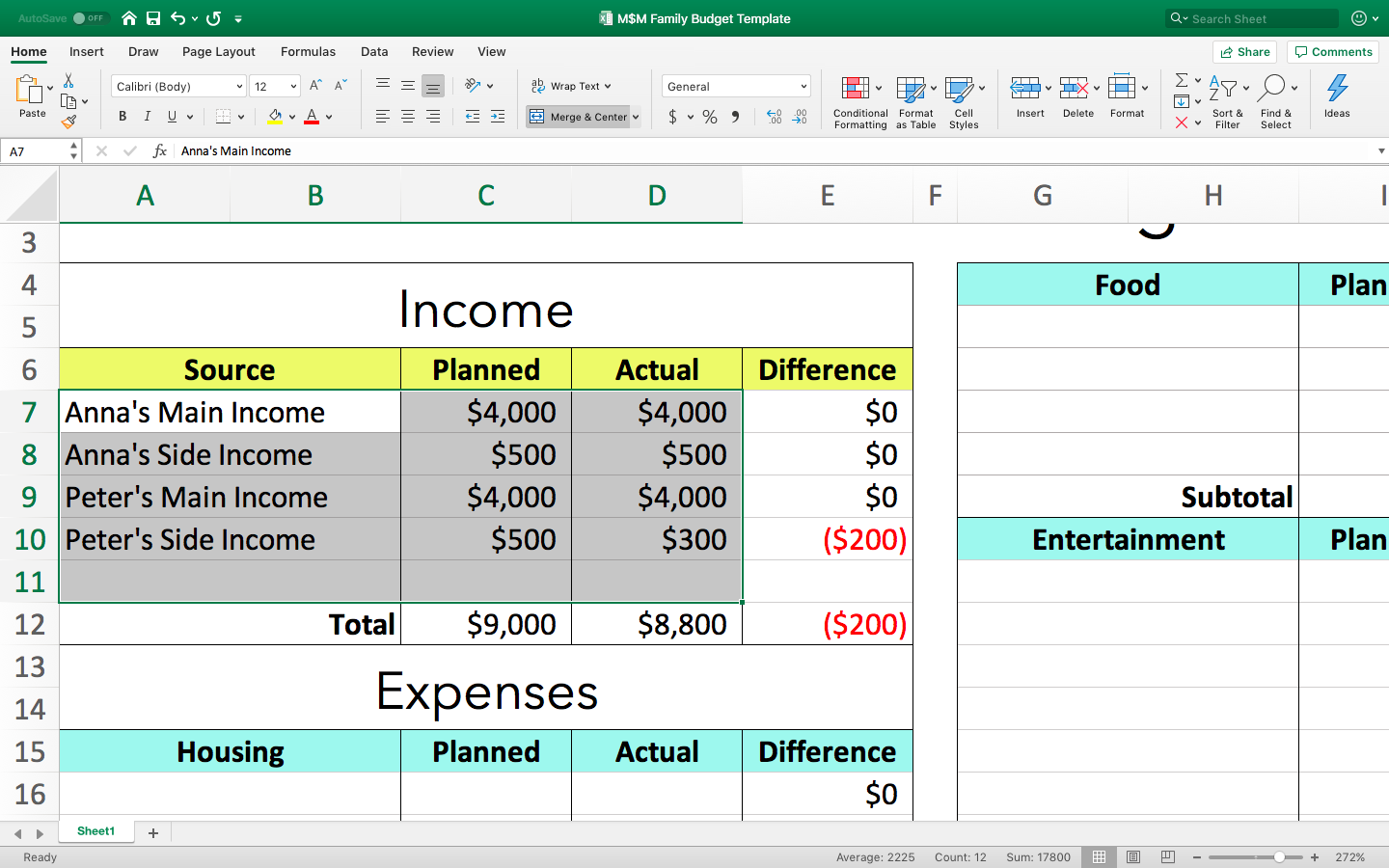
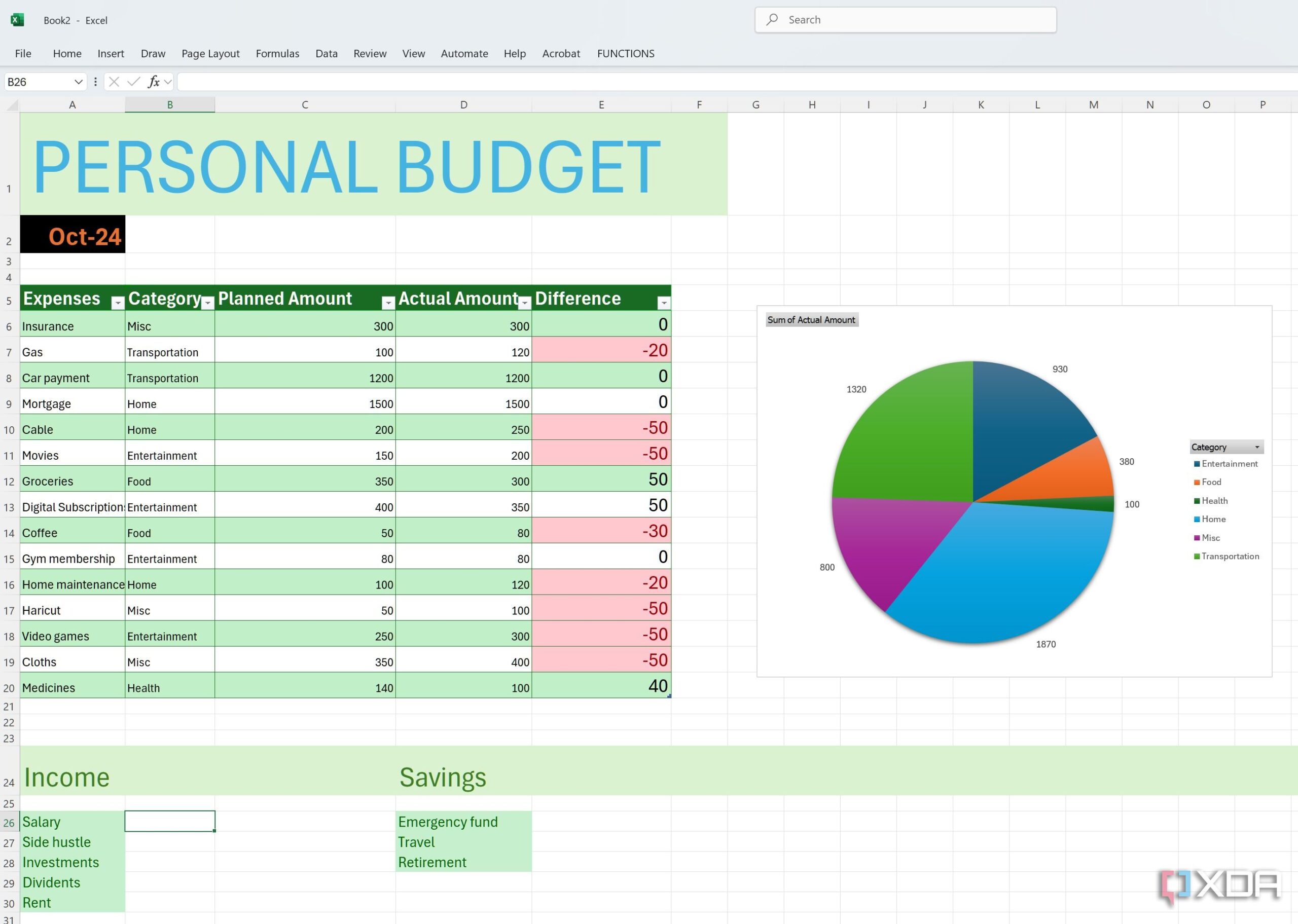
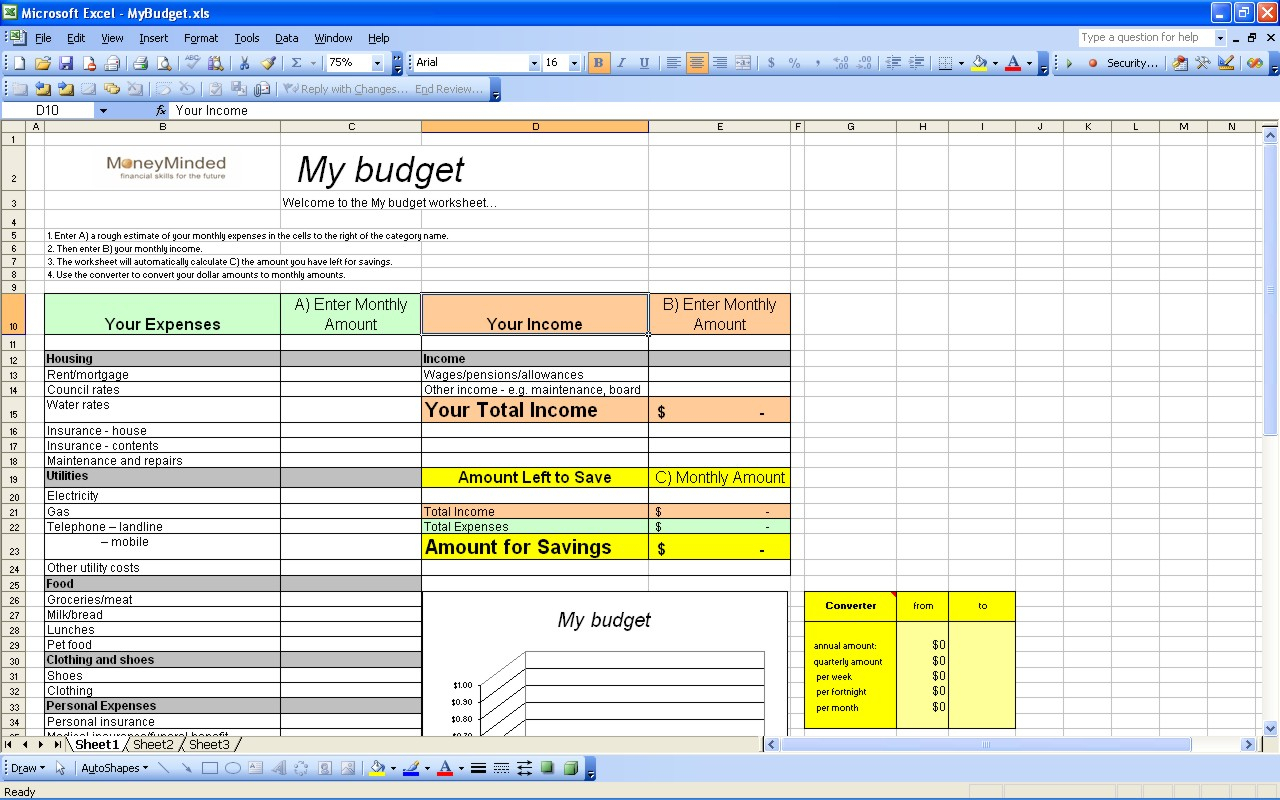
- Set Up Columns: Label the first column “Category,” the second “Planned Amount,” and the third “Actual Amount.” You can also add a fourth column for “Difference.”
- Input Categories: Fill in the categories for income and expenses based on the data you gathered. For example:
- Income
- Salary
- Side Job
- Fixed Expenses
- Rent
- Utilities
- Variable Expenses
- Groceries
- Entertainment
- Enter Your Planned Amounts: Next, input your planned amounts for each category.
- Track Actual Spending: As the month progresses, input your actual spending in the “Actual Amount” column.
- Calculate Differences: Use a simple formula to calculate the difference between your planned and actual amounts. In the “Difference” column, enter `=B2-C2` (assuming B is Planned and C is Actual). Drag this formula down to apply it to all rows.
- Summarize: At the bottom of your worksheet, sum up your income and expenses using the `SUM` function. This provides a clear overview of your financial situation.
- Formatting: Use Excel’s formatting options to highlight important figures. Consider using colors to differentiate between income and expenses.
Utilizing Your Budget Worksheet
Once your Excel budget worksheet is complete, it’s important to utilize it effectively. Review your budget weekly or monthly, adjusting as necessary. This practice helps maintain awareness of spending habits and encourages accountability.
For teachers and homeschool parents, involving children in this process can be a valuable learning experience. Discuss the importance of saving and making informed financial decisions. You can even turn it into a classroom activity, where students create their own version of a budget worksheet.
Tips for Maintaining Your Budget
Creating a budget is just the beginning; maintaining it is where the real challenge lies. Here are some tips to keep your budget on track:
- Set Aside Time: Schedule regular check-ins to review the budget. This could be at the end of each week or month.
- Be Realistic: Ensure that your planned expenses are realistic. Underestimating can lead to frustration.
- Adjust as Needed: Life happens, and expenses may change. Don’t hesitate to adjust your budget accordingly.
- Use Excel Features: Explore Excel’s additional features, such as charts and graphs, to visualize your spending patterns.
- Save a Template: Once your budget worksheet is set up, save it as a template. This makes it easier to start a new budget for the next month or year.
The Role of Repetition in Financial Literacy
For effective learning, especially in a classroom or homeschool setting, repetition is key. Regularly engaging with the budget worksheet reinforces financial concepts and ensures students understand how to track their finances. Consider spacing out the budgeting activity over a week, allowing students to monitor their spending daily. This approach not only solidifies their understanding but also promotes responsible money management.