When Ms. Thompson sat down at her kitchen table, she was surrounded by stacks of receipts, bills, and a little bit of chaos. Between teaching her fourth-grade class and managing her family’s expenses, she realized the importance of having a structured way to track her finances. That’s when she decided to create a budget worksheet in Excel. Learning How To Make A Budget Worksheet In Excel not only helped her manage her household budget but also provided an excellent opportunity to teach her students about money management.
Creating a budget worksheet in Excel is a straightforward process that can benefit both adults and children alike. This guide will walk you through the steps to design an effective budget worksheet, along with practical tips for its use in a classroom or home setting.
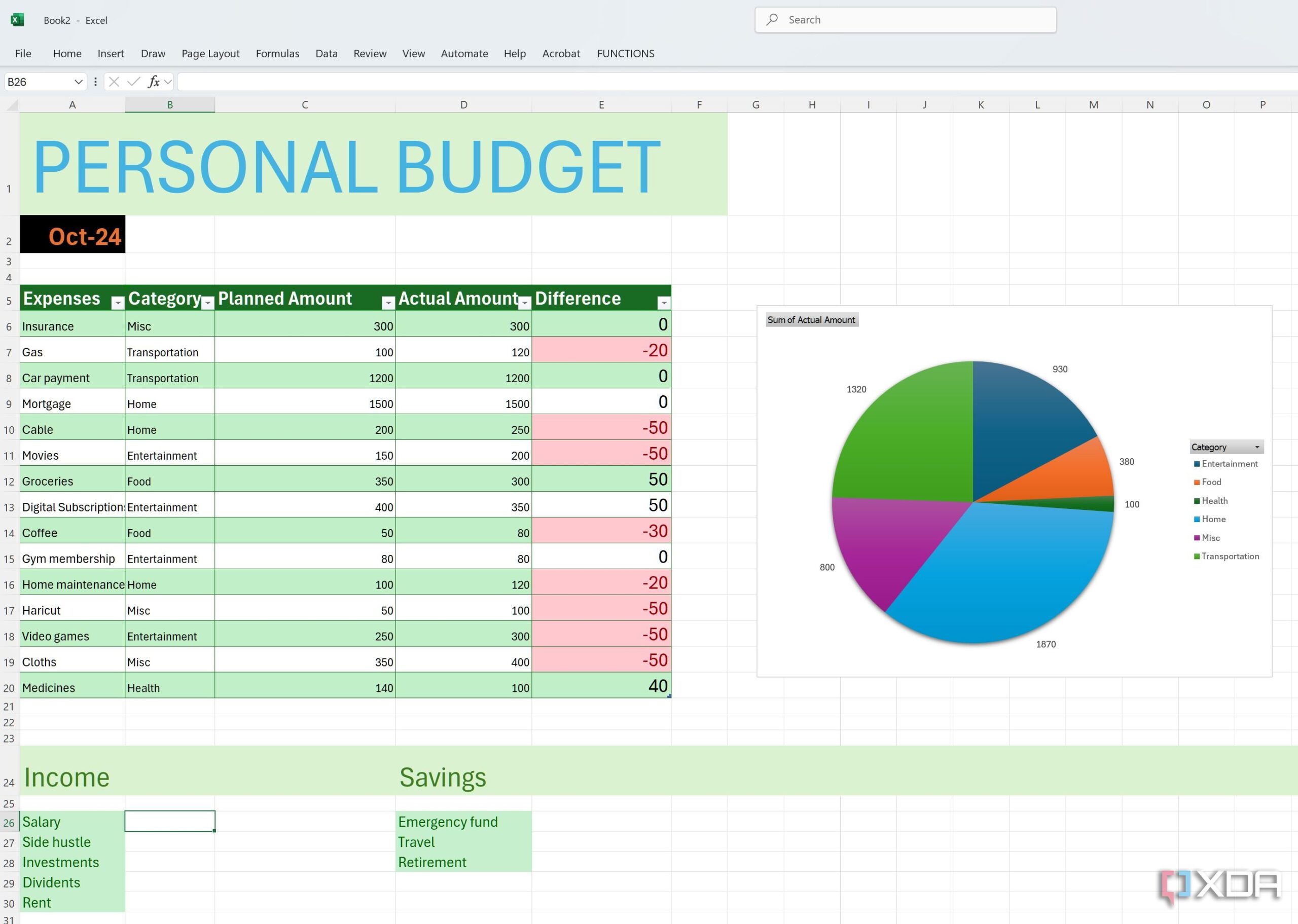
Understanding the Basics of Budgeting
Before you look at Excel, it’s essential to grasp the fundamentals of budgeting. A budget is a plan that outlines expected income and expenses over a specific period.
Key Components of a Budget
- Income: This includes all sources of money you receive—salaries, allowances, or any side jobs.
- Fixed Expenses: Regular payments that stay the same each month, such as rent or mortgage, insurance, and subscriptions.
- Variable Expenses: Costs that fluctuate, such as groceries, entertainment, and clothing.
- Savings: Money set aside for future needs or emergencies.
Understanding these components will help you create a comprehensive budget worksheet.
Setting Up Excel for Your Budget Worksheet
Now that you know what to include in your budget, let’s turn to Excel. Follow these steps to set up your worksheet.
Step 1: Open Excel and Create a New Workbook
Start by opening Excel and selecting “Blank Workbook.” This will give you a fresh canvas to work with.
Step 2: Label Your Columns
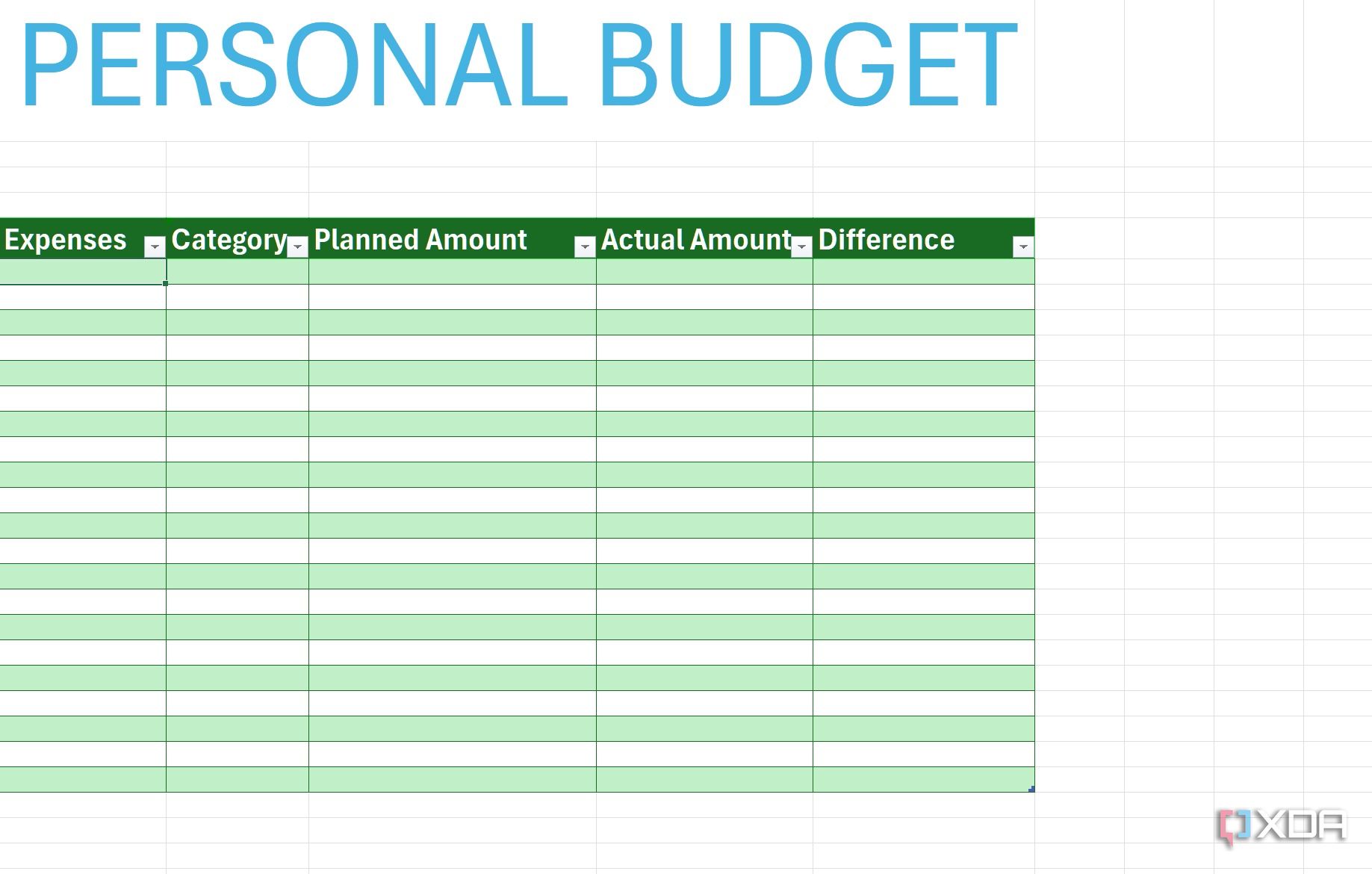
In the first row of your worksheet, label the columns. You might want to use the following headers:
- A1: Category
- B1: Description
- C1: Amount
- D1: Frequency (Monthly, Weekly, etc.)
- E1: Notes
These headers will help you organize your budgeting information clearly.
Step 3: Enter Your Income and Expenses
Under each category, start filling in your expected income and expenses. For example:
- Income: List your salary, side jobs, and any other sources.
- Expenses: Separate them into fixed and variable categories for clarity.
Step 4: Use Formulas for Calculations
Excel’s power lies in its ability to perform calculations. You can use simple formulas to total your income and expenses:
- In cell C10 (or wherever your total row is), use the formula `=SUM(C2:C9)` to calculate total income.
- In cell C20 (or your expenses total row), use `=SUM(C12:C19)` to sum up all your expenses.
Step 5: Create a Budget Summary
At the bottom of your worksheet, add a summary section. This is where you can see your total income versus total expenses. You might use:
- Total Income – Total Expenses = Remaining Balance
This simple calculation will give you a quick overview of your financial health.
Making It Visual
Graphs and charts can help visualize your budget, making it easier to understand for both you and your students.
Step 1: Create a Chart
Select the data you want to visualize (for example, your total income and expenses). Click on the “Insert” tab and choose a chart type, such as a pie chart or bar graph. This visual representation can make financial concepts more accessible for younger audiences.
Step 2: Customize Your Chart
Don’t forget to customize your chart with colors and labels. This will make it more engaging and easier to interpret.
Using the Budget Worksheet in a Classroom Setting
Teaching students about budgeting can be a valuable life skill. Here are some practical ways to incorporate your Excel budget worksheet in a classroom or home setting.
Hands-On Activities
- Create a Classroom Budget: Have students create a budget for a fictional school event, like a field trip. They can use the budget worksheet to plan costs and income from fundraising.
- Personal Finance Lessons: Teach students about managing pocket money. They can fill out their budget worksheets based on their allowances, helping them understand the value of saving and spending wisely.
Regular Check-Ins
Encourage students to update their budget worksheets regularly. This practice reinforces the importance of tracking finances and adapting to changes in income or expenses.
Tips for Effective Budgeting
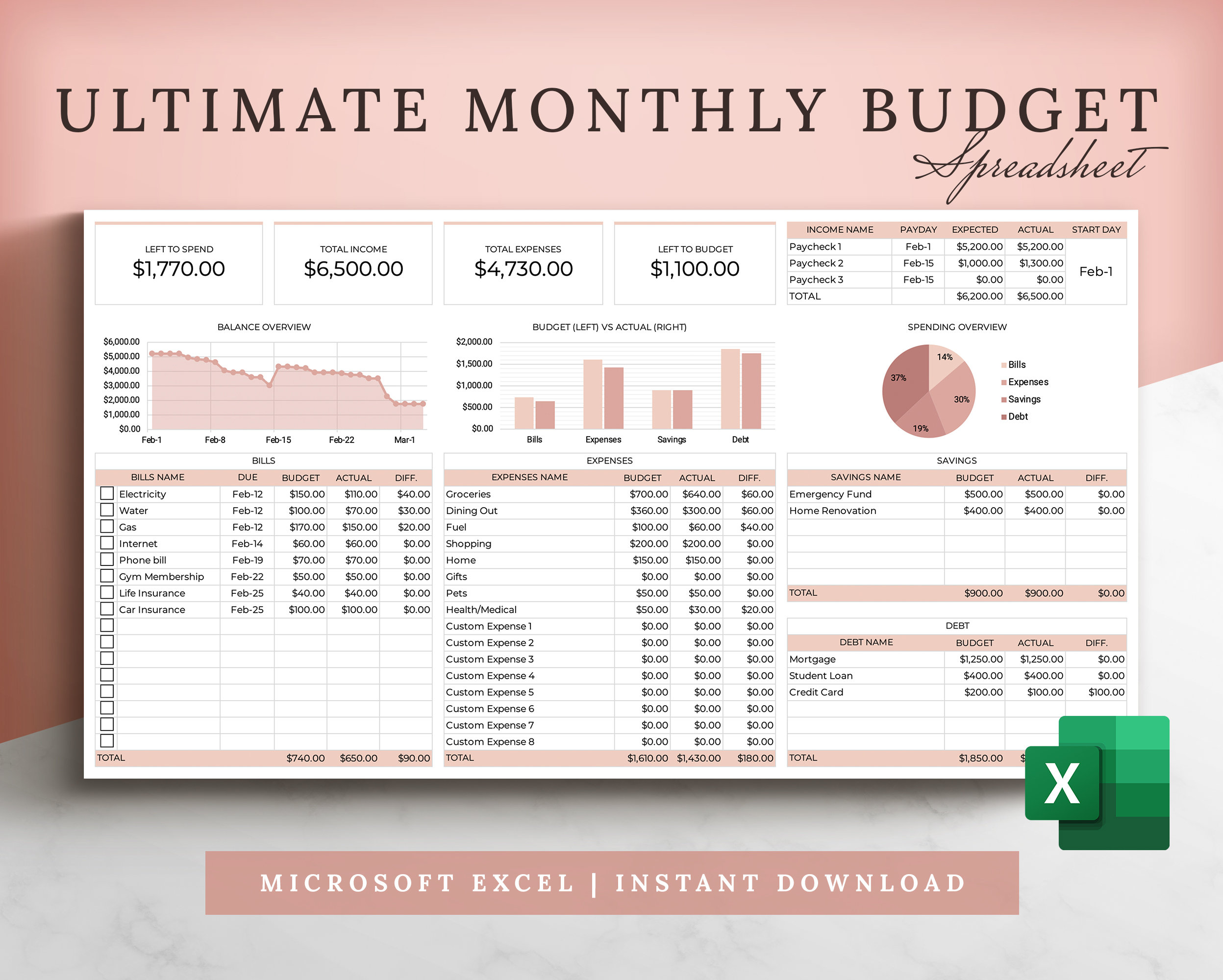
Creating a budget worksheet in Excel is just the beginning. To make the most of it, consider these practical tips:
- Review Monthly: Set aside time each month to review your budget. This helps identify areas where you may overspend and allows for adjustments.
- Involve Family: Engage family members in the budgeting process. Discussing finances openly can foster a sense of responsibility and teamwork.
- Use Online Resources: There are many templates available online that can simplify the process. Look for ones specifically designed for educational purposes if you’re using them in the classroom.