Creating a Budget Worksheet In Excel is an essential skill for anyone looking to manage their finances more effectively. If you are a teacher aiming to help students understand financial literacy or a parent wanting to instill good money habits in your children, a budget worksheet can be a valuable tool. In this guide, we’ll walk you through the process of creating a simple yet effective budget worksheet in Excel, ensuring that you can download, print, and use it immediately.
Understanding the Basics of Budgeting
Before diving into Excel, it’s helpful to understand what budgeting entails. At its core, budgeting is about tracking income and expenses to ensure that you live within your means. A well-designed budget worksheet allows you to categorize your spending, set financial goals, and monitor your progress over time.
For a classroom or homeschool setting, teaching budgeting can align well with math and economics lessons, making it relevant for middle school and high school students. You can use this worksheet to discuss real-life applications of math skills and the importance of financial responsibility.
Setting Up Your Excel Worksheet
Creating a budget worksheet in Excel involves several straightforward steps. Here’s how you can set it up:
- Open Excel: Start by launching Microsoft Excel on your computer. If you don’t have Excel, you can use Google Sheets as an alternative.
- Create a New Sheet: Click on ‘File’ and then ‘New’ to create a blank workbook.
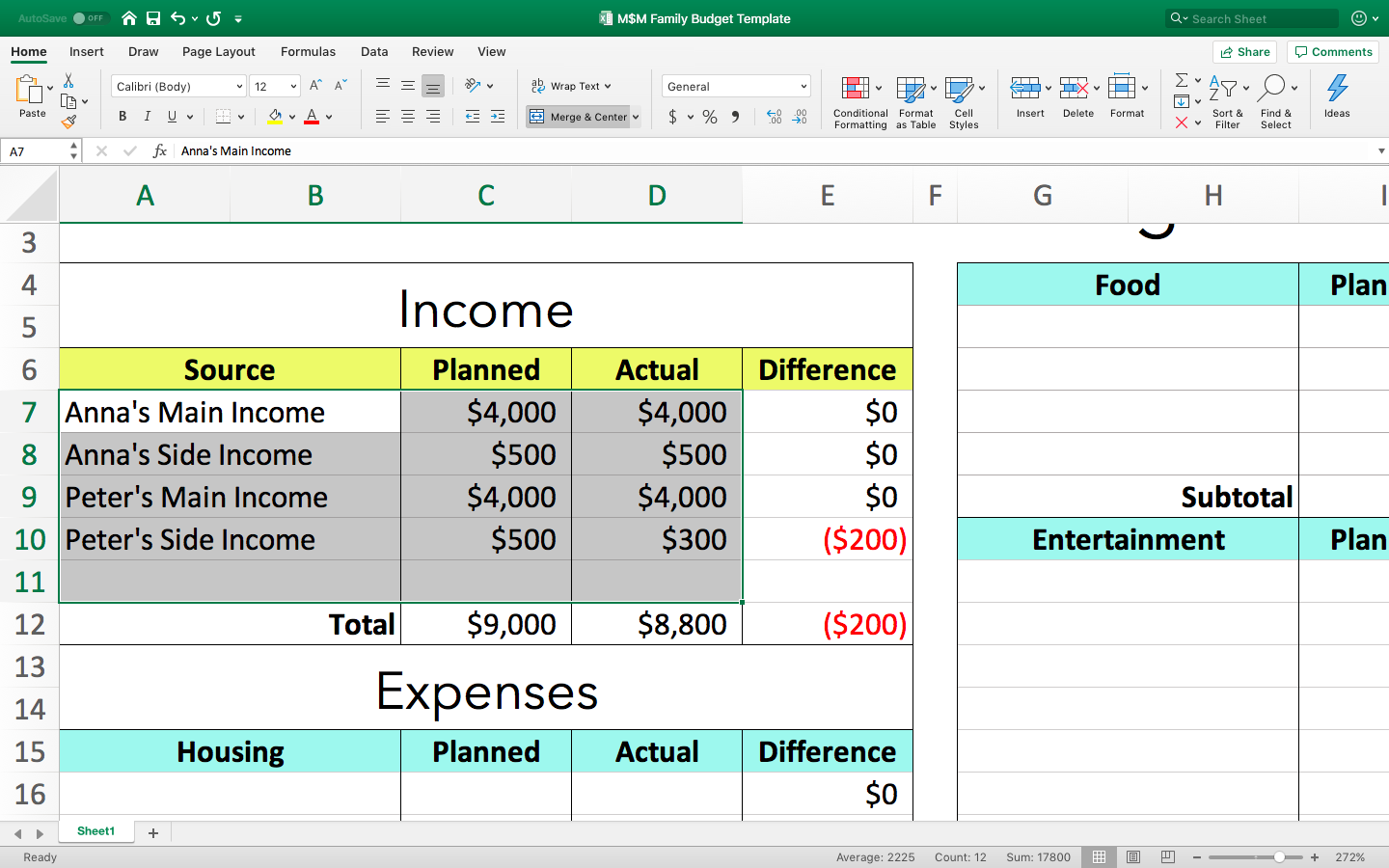
- Design Your Layout: Set up your columns. You might want to include the following headers:
- Date
- Description
- Category (e.g., food, transportation, entertainment)
- Amount
- Income/Expense (a simple dropdown can help with this)
- Format Your Cells: Make sure that your columns are wide enough for the text you’ll be entering. You can also format the ‘Amount’ column to display currency. Just select the cells, right-click, choose ‘Format Cells’, and then select ‘Currency’.
- Add Formulas: Use Excel’s built-in formulas to calculate totals. For example, at the bottom of your ‘Amount’ column, you can use the formula `=SUM(B2:B10)` to sum up the expenses.
- Create Monthly Sections: If you want to track your budget monthly, create separate sections for each month. You could use different sheets within the same workbook for easier navigation.
Customizing Your Budget Worksheet
Once you have the basic structure set up, it’s time to personalize your budget worksheet. Here are some ideas:
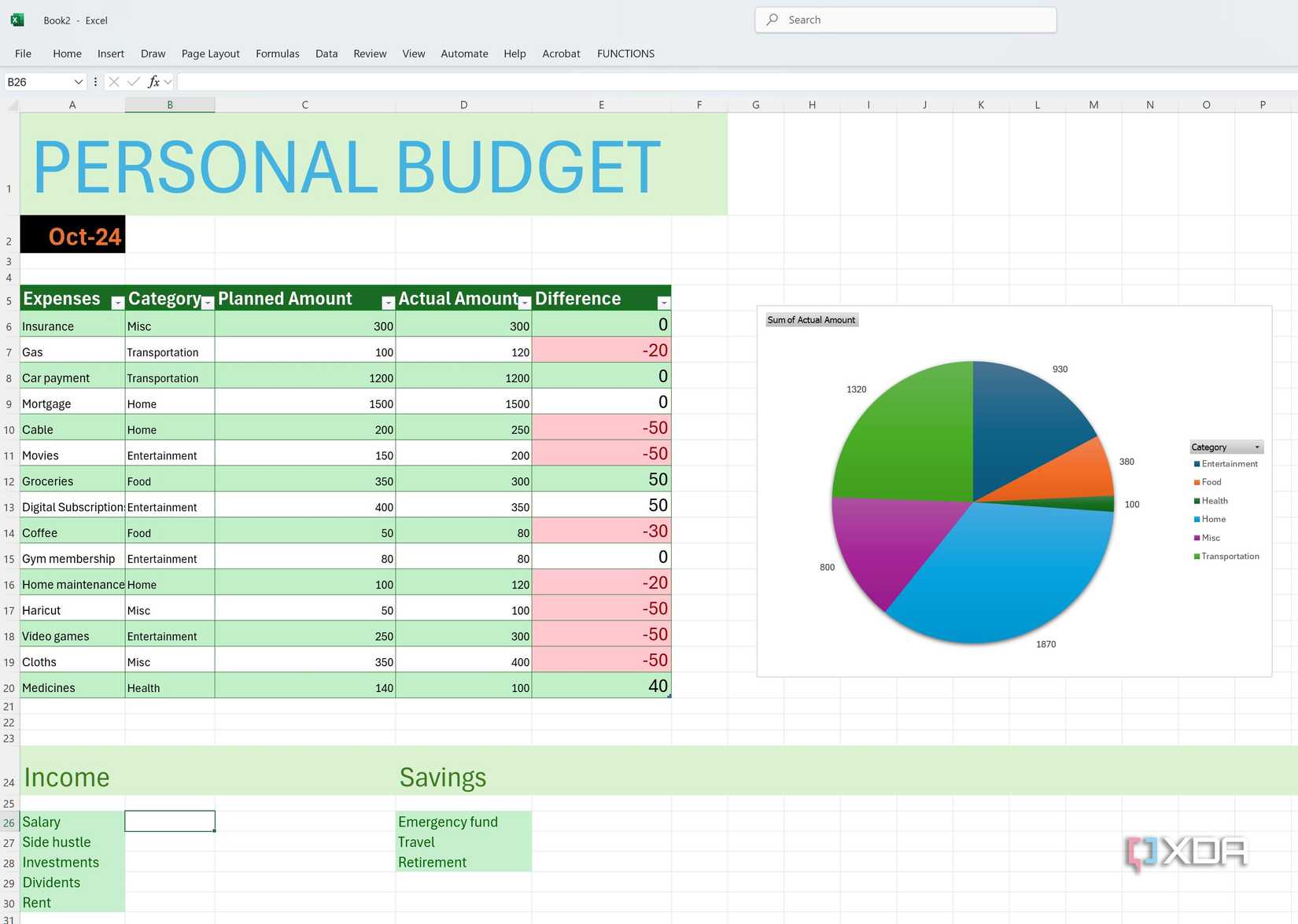
- Add Color Coding: Use different colors for different categories to make it visually appealing and easier to read. For instance, you can color-code all food-related expenses in green and transportation in blue.
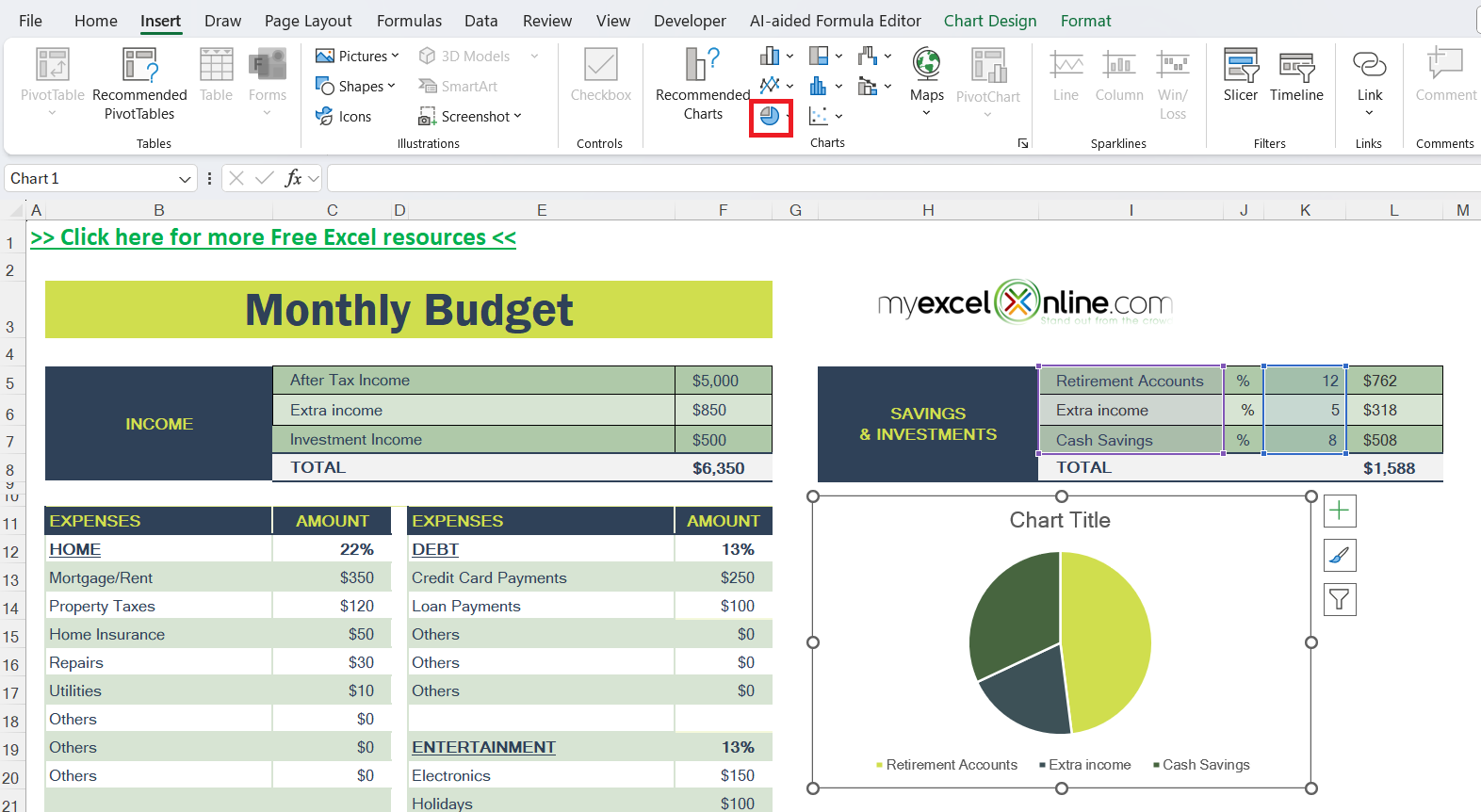
- Include Graphs: Excel allows you to create graphs based on your data. This can help visualize where your money is going. Select your data, go to the ‘Insert’ tab, and choose the type of chart you want to use.
- Set Goals: At the top of your worksheet, consider including a section for financial goals. This could be saving for a trip, paying off debt, or setting aside money for a rainy day.
Printing and Using Your Budget Worksheet
Once your budget worksheet is ready, you might want to print it out for easier access, especially if you’re using it in a classroom or at home. Here’s how to do that effectively:
- Check Print Settings: Go to ‘File’ then ‘Print’. Make sure to select the correct printer and choose the right paper size (typically A4 or Letter).
- Adjust Margins: You can adjust the margins to ensure your content fits well on the page. A portrait layout often works best for budget worksheets.
- Print in Bulk: If you’re providing this worksheet to a class, print in bulk. Consider using cardstock if you want the worksheets to be more durable, especially if they will be used frequently.
- Add an Answer Key: If you’re using this worksheet for teaching purposes, consider creating an answer key or a sample budget that students can refer to when filling in their own worksheets.
Incorporating Real-Life Scenarios
To make the budgeting exercise more engaging, you can incorporate real-life scenarios. For example, you might give students a hypothetical monthly income and a list of expenses to work with. This approach helps them practice their budgeting skills and understand the importance of financial planning.
You can also encourage discussions about financial priorities. What should come first—saving for a car, planning for a vacation, or paying off student loans? These conversations can be enriching and informative.
Final Tips for Success
Creating a budget worksheet in Excel doesn’t have to be daunting. Here are some final tips to enhance your experience:
- Update Regularly: Encourage students or family members to update their budgets regularly. This habit helps reinforce the importance of keeping track of finances.
- Use Templates: If you’re short on time, look for pre-made templates available online. Many resources offer free downloadable Excel templates that you can customize.
- Celebrate Achievements: When goals are met, celebrate those achievements. Whether it’s saving a certain amount of money or sticking to a budget for a month, recognizing these milestones can motivate continued effort.
By following these steps, you can effectively create, print, and implement a budget worksheet in Excel that serves as a practical tool in your classroom or home. The key is to keep it simple, engaging, and relevant to your financial goals. Remember, the first step to financial literacy is understanding how to budget effectively, and this worksheet is a great starting point.